 RoomDisk
iPhone storage full? Free space without paying monthly
Photos and videos fill an iPhone fastest. Move them to a spare device you already own, let RoomDisk prove each copy is identical, then delete only what was checked.
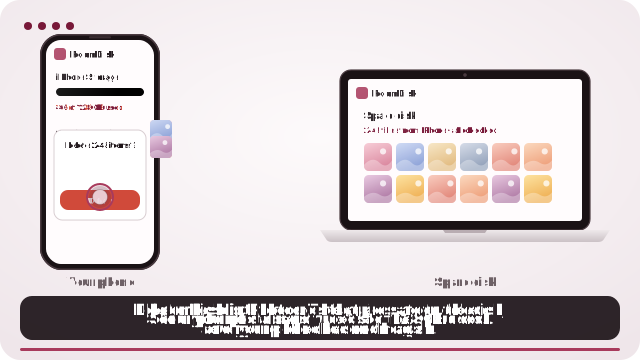
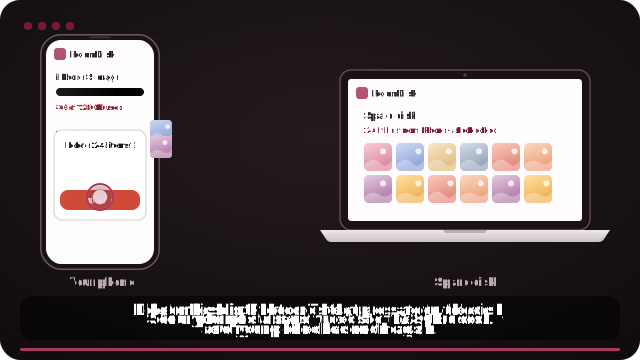
How to do it
- Open roomdisk.com/app on the device that will keep the files and choose Use this device as the spare disk. It shows a QR code.
- On the phone or computer with the files, scan that code. A phone’s Camera app works: tap the roomdisk.com link that pops up. RoomDisk opens and shows its own code.
- On the spare disk, tap Scan reply and hold the phone’s screen up to its camera. (No camera there? Tap Share reply on the phone and open it on the disk device.)
- Send your biggest albums or videos first (Settings › General › iPhone Storage shows what’s large).
- Delete only what the summary lists as safe to delete. iPhone keeps deleted photos in Recently Deleted for 30 days.
Do it in batches
Large videos free the most space. Send a few hundred photos or a few big videos at a time; if anything is cut off, send again and it continues.
Before deleting, open a few photos and play a video from the disk under Files. Then empty Recently Deleted to actually free the space.
On iPhone, for exact originals, tap Options in the photo picker and choose Current, or pick from the Files app. Otherwise iPhone may send converted copies (for example JPEG instead of HEIC).
Questions
Will this delete anything for me?
No. RoomDisk never deletes from your phone. It tells you what’s safe; you delete it.
Can I get them back later?
Yes: connect to the disk, open Files, select and download, or view them right there.
Try it with the two devices you have
Free to start. Nothing to install, no account.