 RoomDisk
External storage for iPhone 14 and older
iPhones up to the iPhone 14 have a Lightning port, which needs special drives or adapters. A spare device you own, used through the browser, works as wireless storage instead.
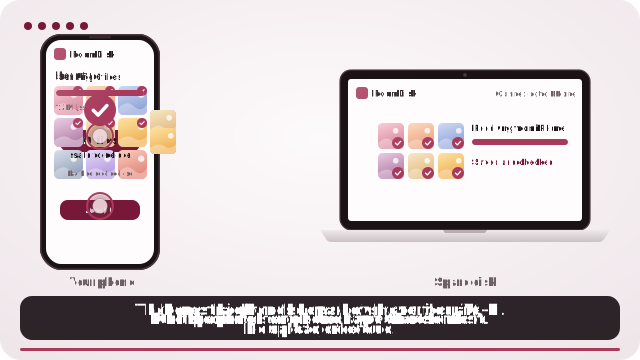
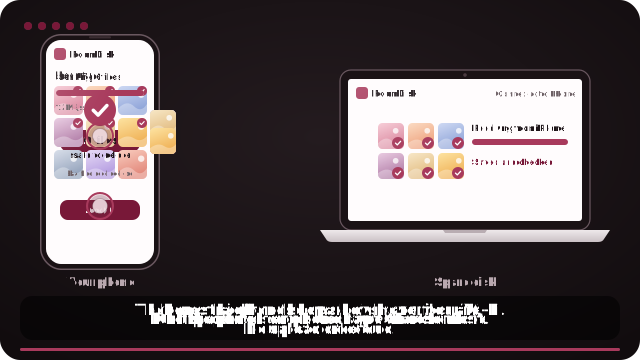
How to do it
- Open roomdisk.com/app on the device that will keep the files and choose Use this device as the spare disk. It shows a QR code.
- On the phone or computer with the files, scan that code. A phone’s Camera app works: tap the roomdisk.com link that pops up. RoomDisk opens and shows its own code.
- On the spare disk, tap Scan reply and hold the phone’s screen up to its camera. (No camera there? Tap Share reply on the phone and open it on the disk device.)
- Both screens say Connected. Choose files and send. Each file is checked when it lands.
Lightning, USB-C and speed
iPhone 14 and older use Lightning (USB 2 speeds). iPhone 15 and later use USB-C; standard models are still USB 2, Pro models support USB 3. RoomDisk doesn’t use the port at all: speed depends on your Wi-Fi.
What makes a good spare disk
- A laptop or desktop: lots of space, files land in a normal folder.
- An old iPad or Android tablet: always at home, plugged in.
- An old phone: fine for photos; keep it on screen while receiving.
Questions
Do I need an adapter?
No. Nothing plugs in; it’s wireless through the browser.
Try it with the two devices you have
Free to start. Nothing to install, no account.